Build a Self-Storage Prospecting List with Advanced Filters
Advanced Filters lets you screen every self-storage facility in the country. Set your conditions, run the search, and you get back the facilities that match, ready to sort, map, or work through one at a time.
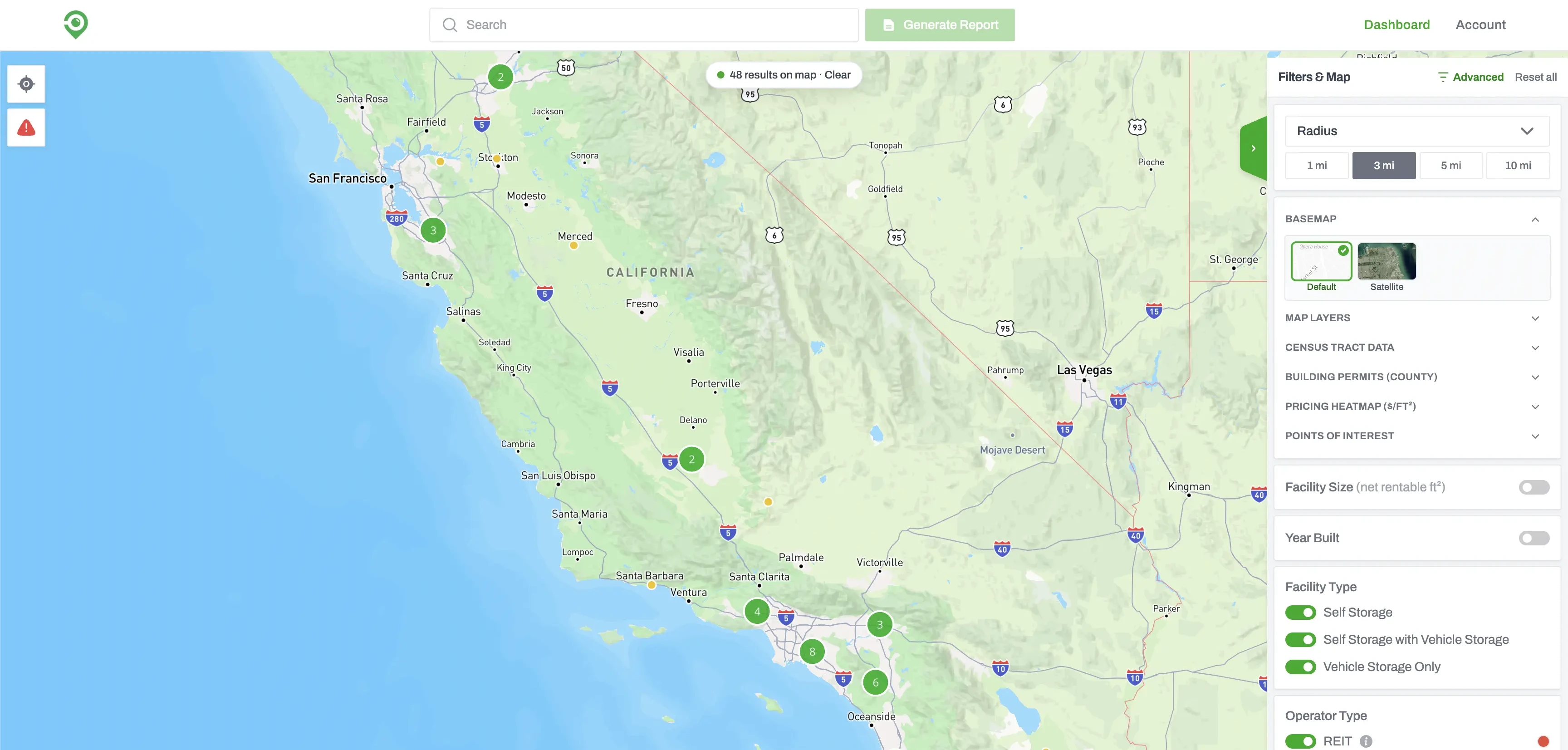
Most of Storage Stats is built around looking at one market at a time. Advanced Filters works the other way around. You start from the whole dataset, more than 73,000 U.S. facilities. Using advanced filters, you are building a prospecting list that will allow you to focus on a couple hundred facilities that meet your criteria.
Start with where to look
The first choice is geographic. You can search nationwide, limit it to one or more states, or draw a radius around a specific address. The address search takes any address, city, or ZIP and lets you set the radius anywhere up to 100 miles, so you can center on a market you already know and pull everything around it. Leave it on “nationwide,” and the rest of your filters run against the entire country.
Narrow by what the facility is
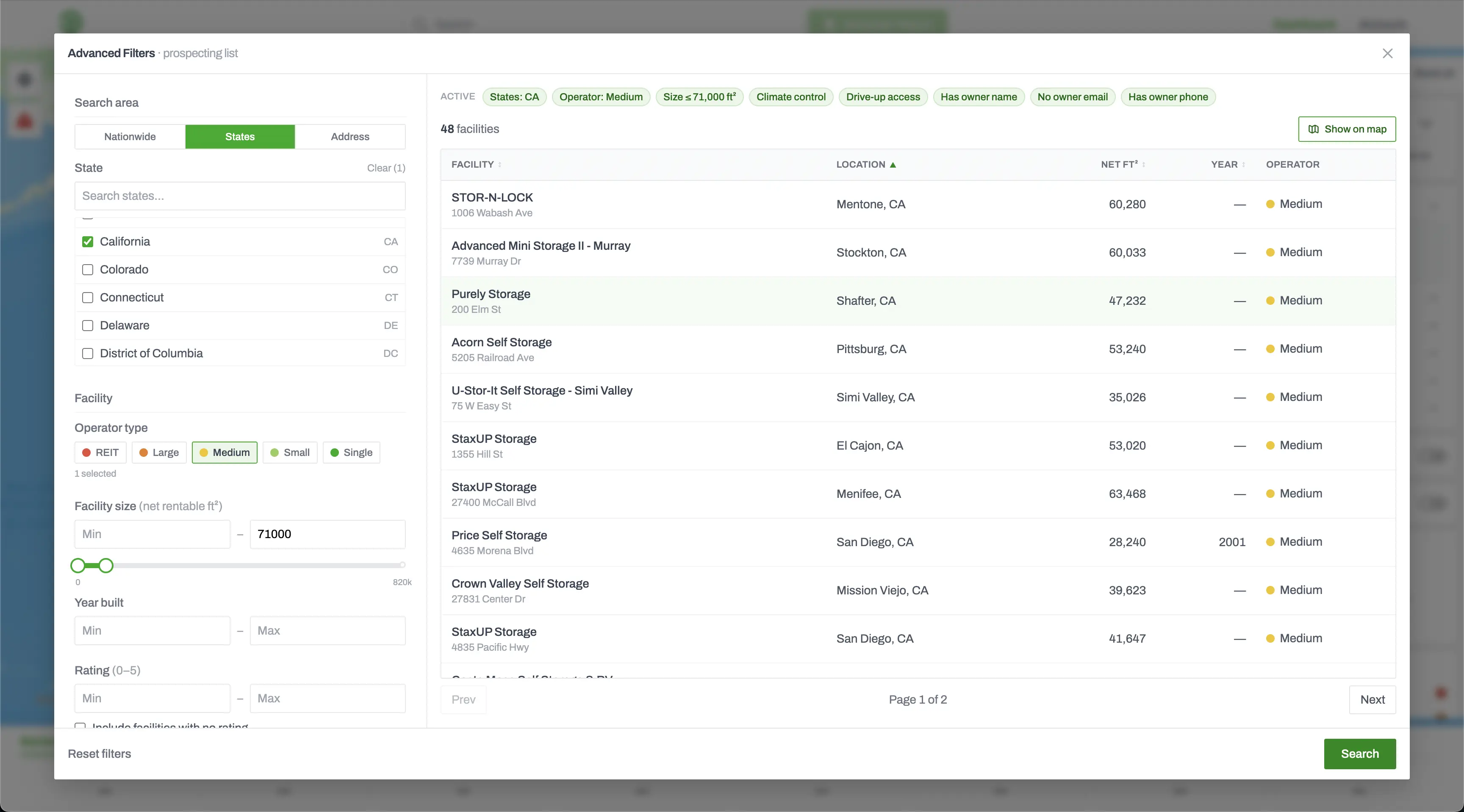
Once the area is set, you filter on the facility itself. Operator type sorts facilities by who runs them, from the public REITs down through large, medium, and small operators to single-location owners, which is often the first cut a buyer makes when the point is to find independent locations. Facility size is a min and max on net rentable square feet. Year built takes a range. There is also a Google review rating from 0 to 5, with a checkbox to keep facilities that have no rating yet.
Yes, no, or any
A lot of the filters are three-way. You can require a feature, exclude it, or ignore it, and that applies to climate control, drive-up access, indoor and outdoor units, multi-story, parking, and RV, boat, and vehicle storage. The “exclude” side is the one worth knowing about. Asking for facilities without climate control, or without a website, is how you surface the older, less-managed properties that tend to be the real off-market prospects. We went deep on the no-website angle in a separate post; it is one of the more reliable independent-owner signals in the data, and it feeds the same off-market workflow.
Owner contact you can actually use
Under owner contact, you can filter to facilities that have an owner name, email, or phone number on file. This matters most when the list is meant for outreach. The owner details sit on each facility's profile, and the same information can be exported through the Facility Report download if you'd rather work from a spreadsheet. The PDF and Excel export post covers how to do that.
Layer in market context
The filters so far describe the facility. The next two sections describe its surroundings, and both hang off a single radius setting of 1, 3, 5, or 10 miles. Pricing lets you set a range on a facility's own advertised price per square foot, and separately on the average price per square foot across everything inside the radius, so you can hunt for a facility priced below the market around it. You can scope both to a specific unit size or leave them on the facility overall. Demographics covers population, population growth, median income, and storage square feet per capita, the last of which is a supply-versus-demand gauge for how saturated the area already is.
Find debt coming due
The last section filters on CMBS loans. When a facility's debt is securitized, its operating data becomes public, and Storage Stats matches it back to the facility. You can filter to facilities that carry a CMBS loan, set a range on occupancy from the most recent filing, set a range on the original loan balance, and filter by loan maturity date. Searching for loans maturing in the next year or two can surface owners who will soon have to refinance or sell. The occupancy here is verified rather than estimated, which we get into in the CMBS occupancy post.
A loan maturing next year is one of the few things in this market that tells you when an owner is likely to move, not just whether they might.
Working the list
Everything you set stacks together, and any filter you leave blank is ignored, so a search runs as broad or as tight as you make it. Active filters show at the top of your screen, and filtered results come back as a table you can sort by name, location, size, or year built, and clicking any row opens the full facility profile with its units, owner details, and nearby competitors. Show on map plots the whole result set at once, which is the fastest way to see how a list clusters geographically.
Advanced Filters is part of the standard membership, not a separate add-on. Unlimited access is $99.99 a month, or $49.99 a month billed annually, and the pricing page has the full breakdown. The quickest way to get a feel for it is to pick one thing you care about, say single-location owners in your state with no website, and watch your target list get created.
Get nationwide self-storage data
Try Storage Stats free, no credit card required. Rent rates, supply, demographics, ownership, and more, all in one platform.
More from the blog
How Our PDF and Excel Exports Power Owner Outreach
Storage Stats exports two reports for every market, a Market Report and a Facility & Owner List, each as a PDF and an Excel. A rundown of what's in the four files and how they carry you from market research to owner calls.
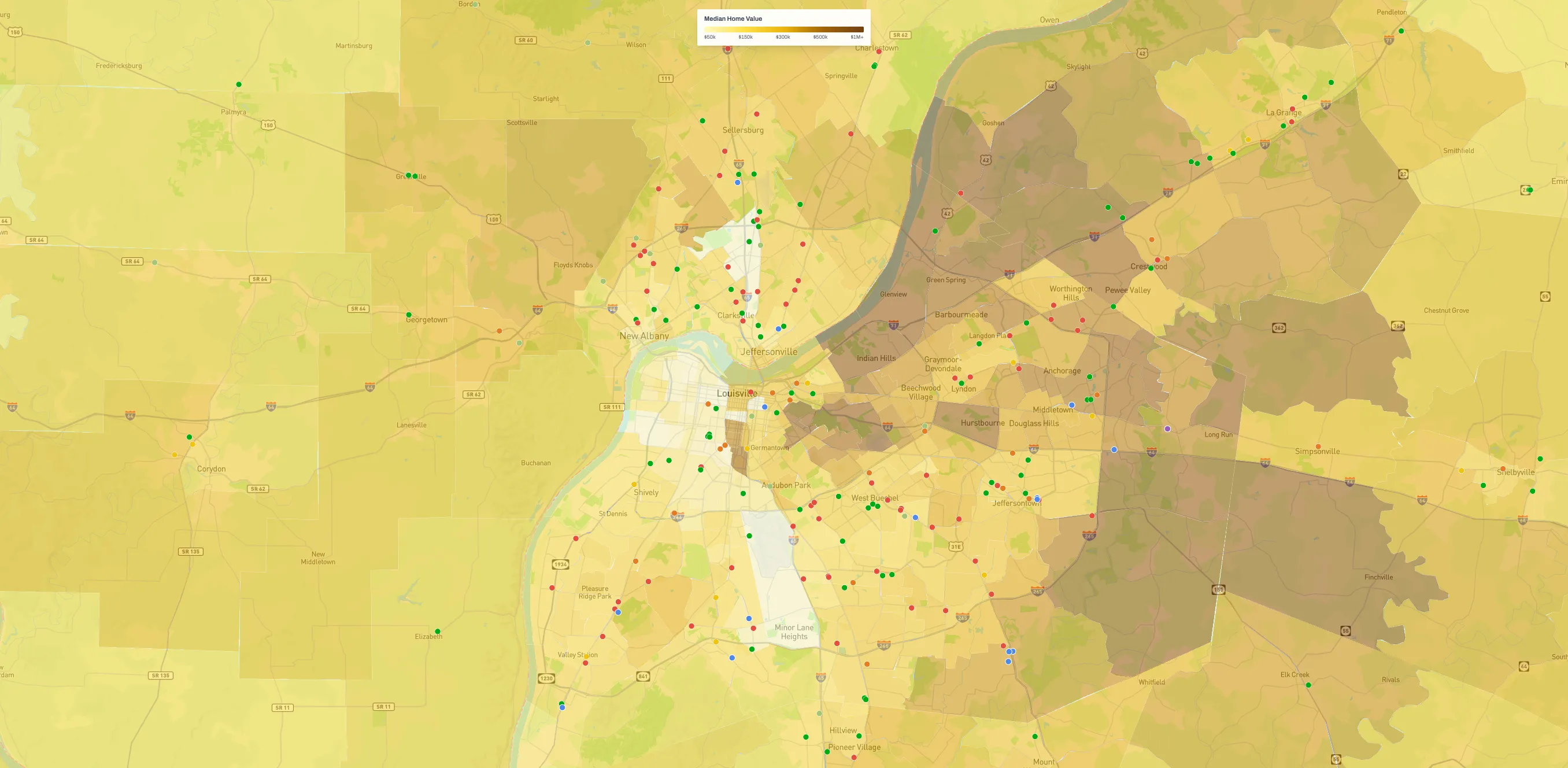
A Guide to Map Layers in Storage Stats
Every market view in Storage Stats is a base map you stack layers on, from supply and demographics to building permits, demand drivers, and flood-zone overlays. A run through what each layer shows and how to combine them.
How Many U.S. Storage Facilities Don't Have a Website?
Roughly one in five self-storage facilities in our dataset has no working website. If you're buying storage, that empty column is one of the better off-market leads you'll get, and the easiest to filter for.